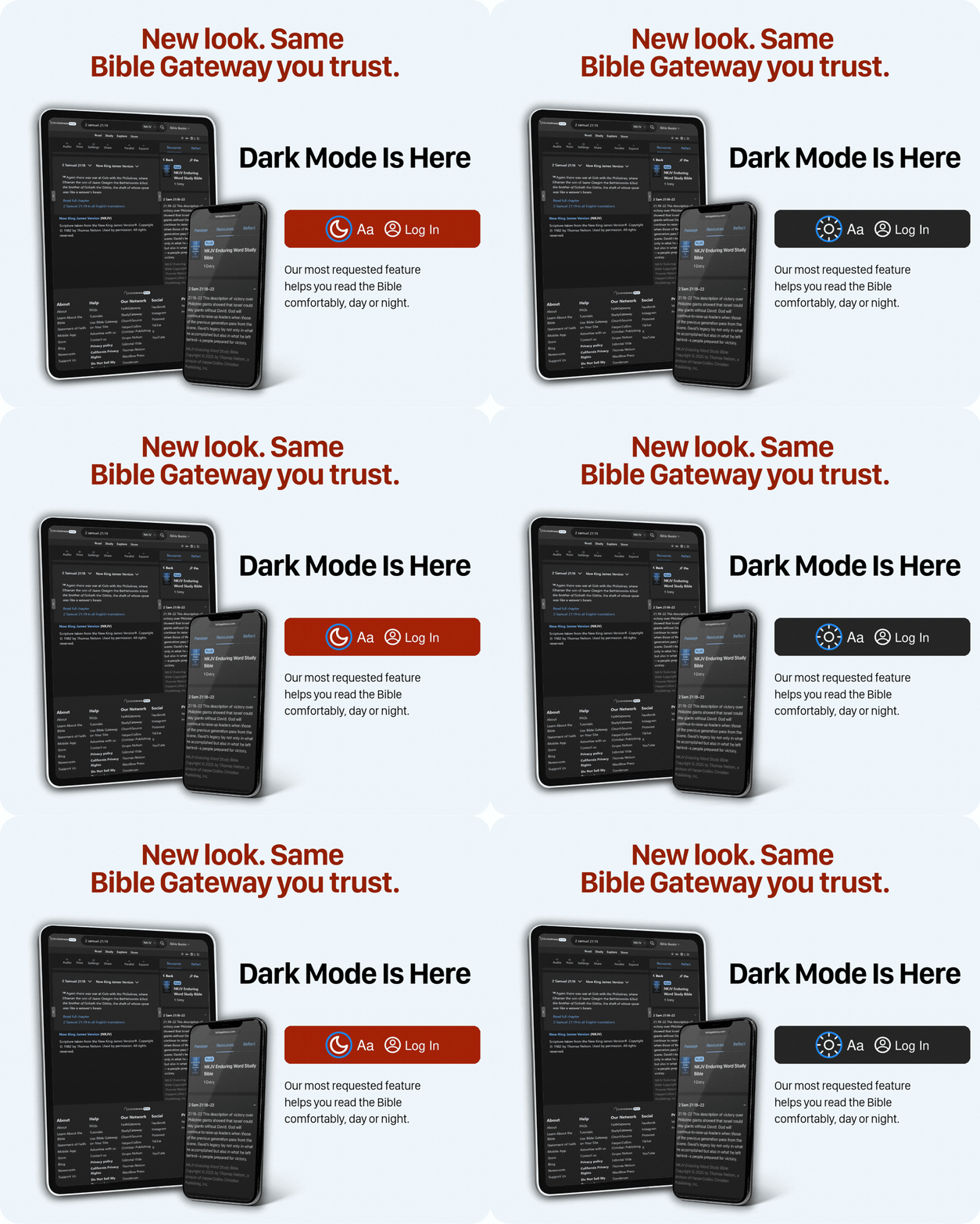
The new Bible Gateway is here with a cleaner layout that makes it easier to find verses and resources. You have simpler navigation, smarter search, and one of your most-requested features: Dark Mode.
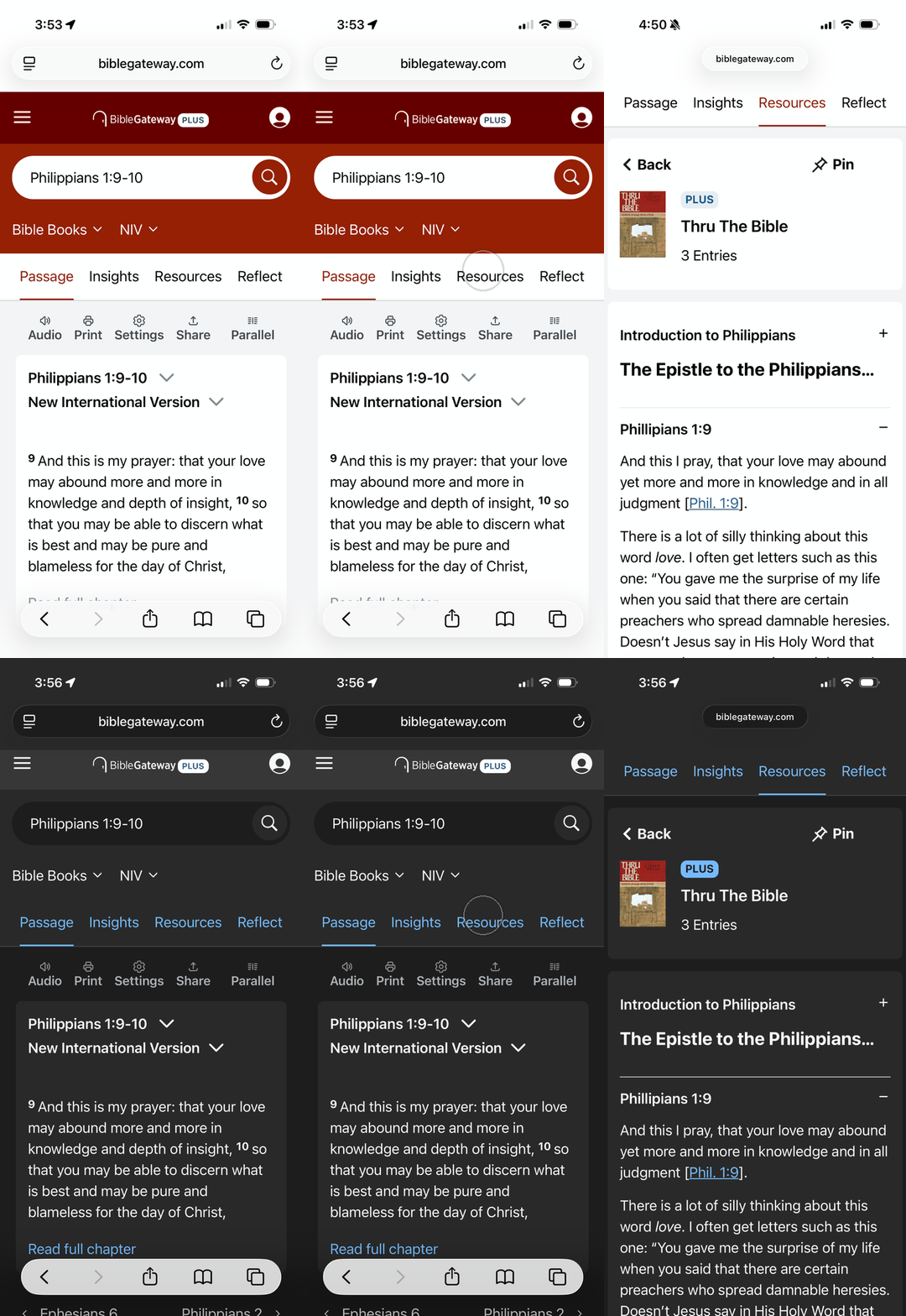
Whether you’re reading at your desk or on the go, you can choose Light or Dark Mode for more comfortable reading day or night.
|
Light or dark. Web or App. You have more options for how and where you spend time in Scripture.
|
|
|
How do I turn on Dark Mode?
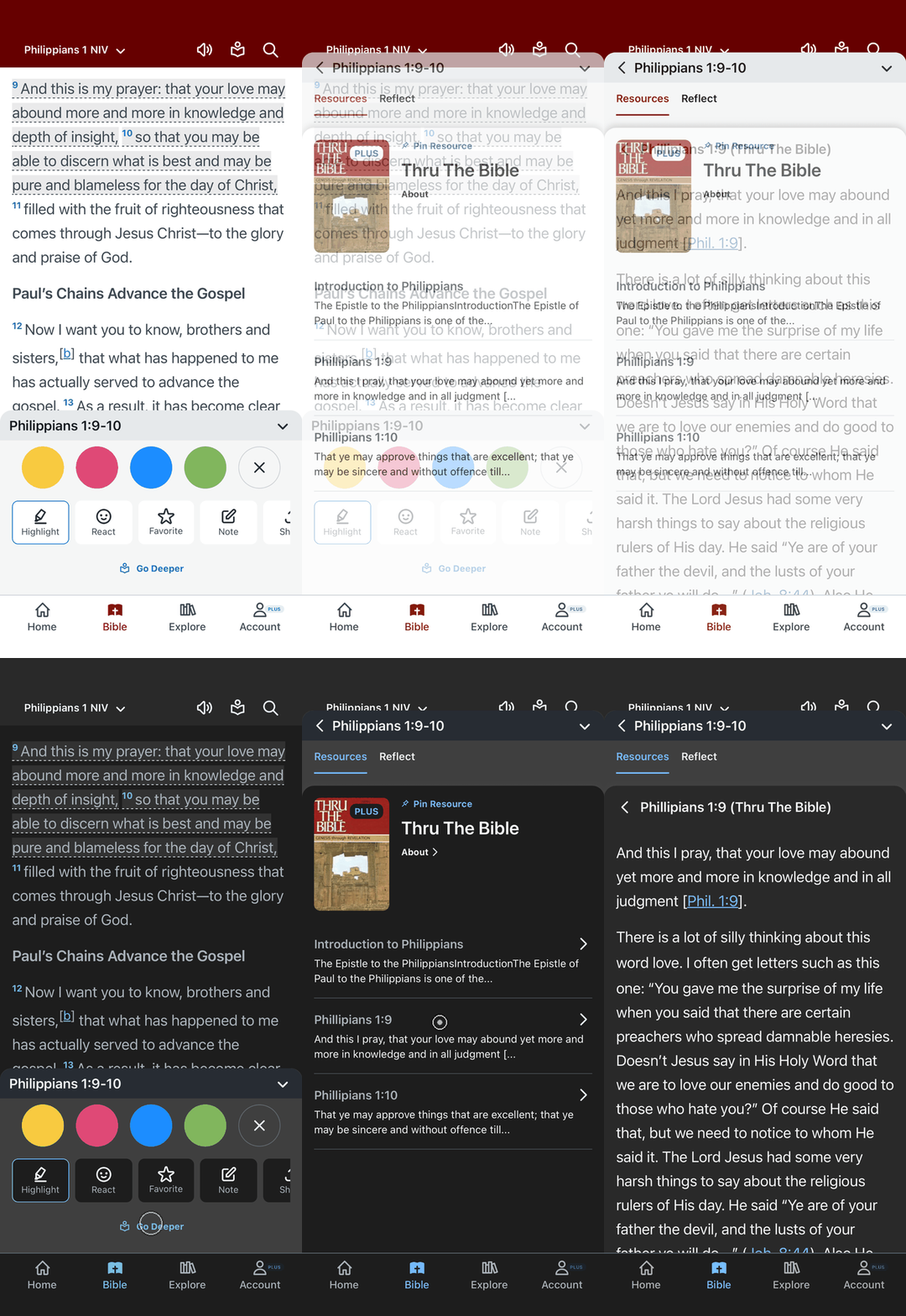
On desktop, select the moon or sun icon in the top navigation. On mobile, scroll to the footer to find the Dark Mode tools and font-size controls. In the Bible Gateway App, tap the Account menu, tap Preferences and tap the slider to turn “Dark Mode” ON.
|
|
|
|
See the whole chapter.
There’s a new way to see the bigger picture of what you’re reading.
Every chapter of the Bible, from Genesis to Revelation, now includes a free Chapter Overview with its main ideas, context, and practical application—all informed by Bible Gateway’s trusted resources.
So when a verse catches your attention, you don’t have to stop there. See the whole chapter.
|
|
|
|
How do I open a Chapter Overview?
On BibleGateway.com, open a Bible passage and select the Insights tab next to Passage. You’ll find a free Chapter Overview to help you see the bigger picture of the chapter you’re reading.
Chapter Overviews are coming to the Bible Gateway App, look for the Insights tab as you Go Deeper into any passage.
|
|
|
|
Want to go deeper?
Bible Gateway Plus gives you access to trusted Study Bibles, commentaries, and other study resources to help you explore Scripture more deeply.
You can even open the trusted sources behind each Chapter Overview and explore the study notes for yourself.
|
|
|
|








No comments:
Post a Comment